It's a great month for Hiya Connect customers! We've added a host of new features and improvements to make managing your phone numbers and Call Branding faster and easier. Read on to learn what's new.
- Tags
- Performance Analysis Report
- Phone number bulk upload
- Image library
- Call Delivery Report enhancements
When will these features be available?
All of these features will be available in the Connect console on Monday, May 16, 2022. If you have questions about these enhancements or your account, feel free to reach out to your Hiya Connect Customer Success Manager or Account Executive.
Tags
Use tags to organize and analyze groups of phone numbers, making it easier to manage, analyze, and compare the performance of business units, campaigns, regional offices, or any grouping that works for your company.
Key changes:
- A new area for tags on the Phone Numbers page
You can now find a "Tags" tab on the Phone Numbers page. This page (figure 1) displays a list of the tags you have created and links to details and analytics for each one. - Create tags and apply them to your phone numbers
You can now create tags (figure 2), apply tags to phone numbers to organize them into groups, or update already tagged phone numbers. Each phone number can have up to 10 customizable tags, making them flexible enough to work however you choose to use them. - Tag detail pages and analytics
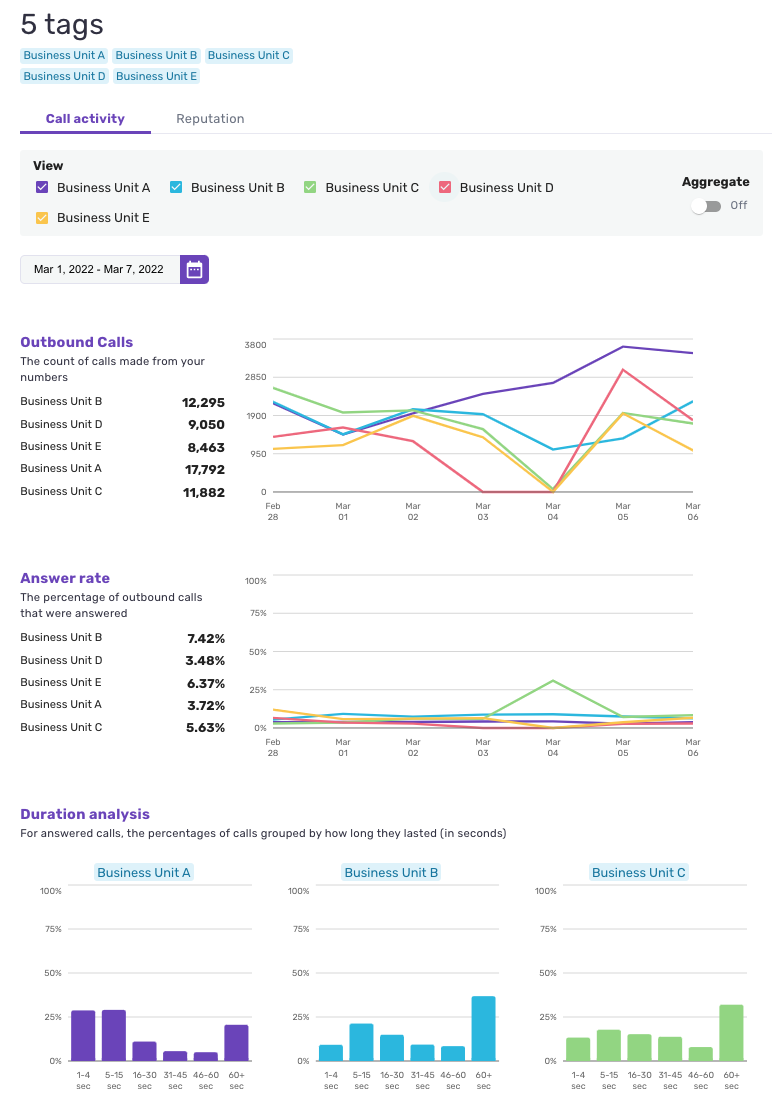
Once you've tagged your phone numbers you can view the analytics and details for a single group of tagged phone numbers or select multiple tags to compare their performance analytics or combine them into one aggregated view. (figures 3 & 4)
To learn more about tags, visit the tags user guide.
Figure 1 - A new tab for tags
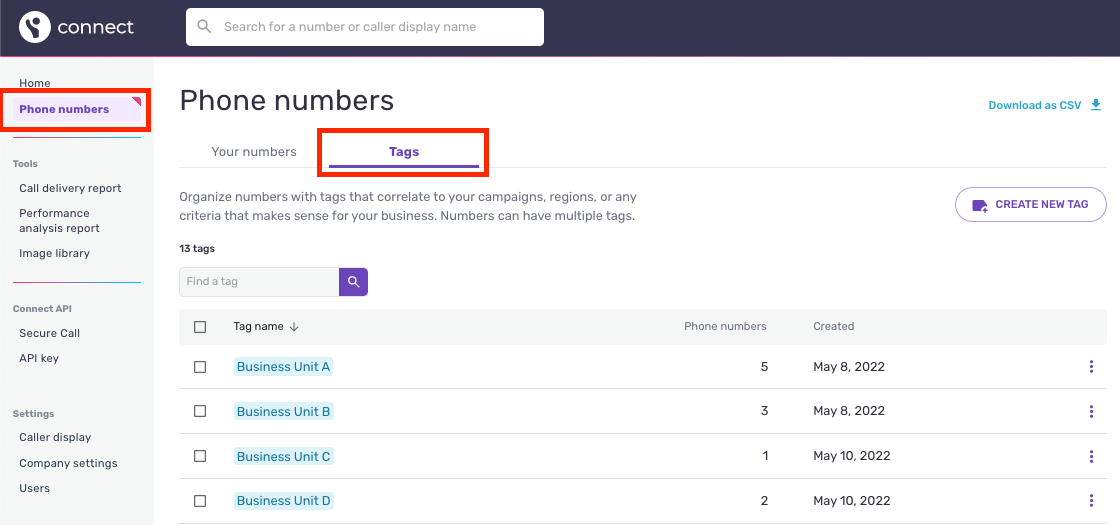
Figure 2 - Creating tags
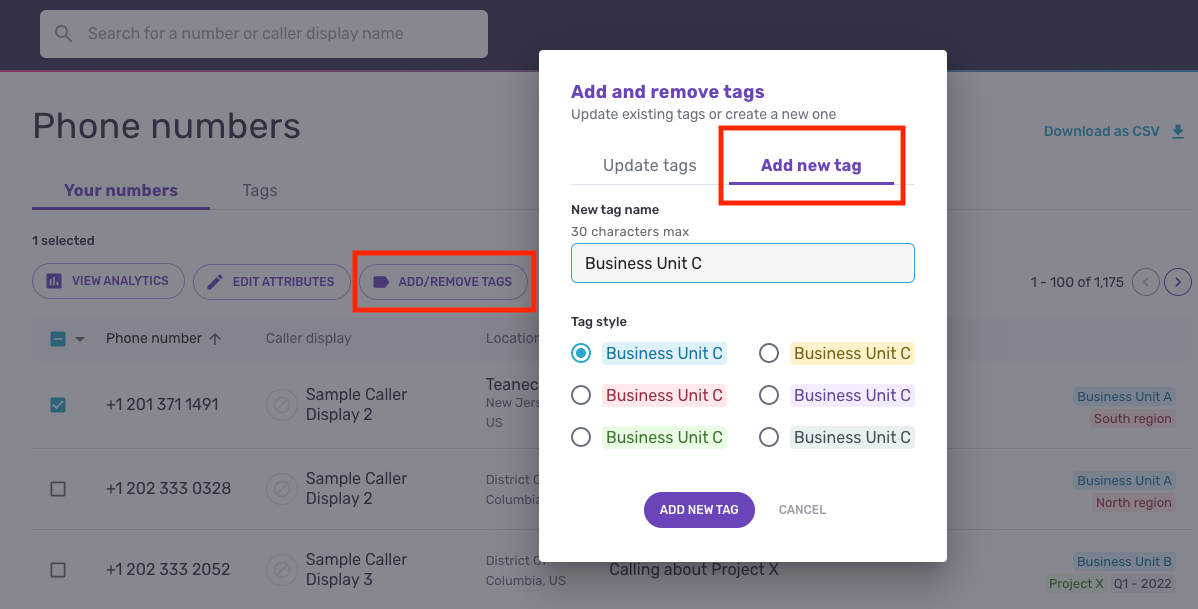
Figure 3 - Tag analytics
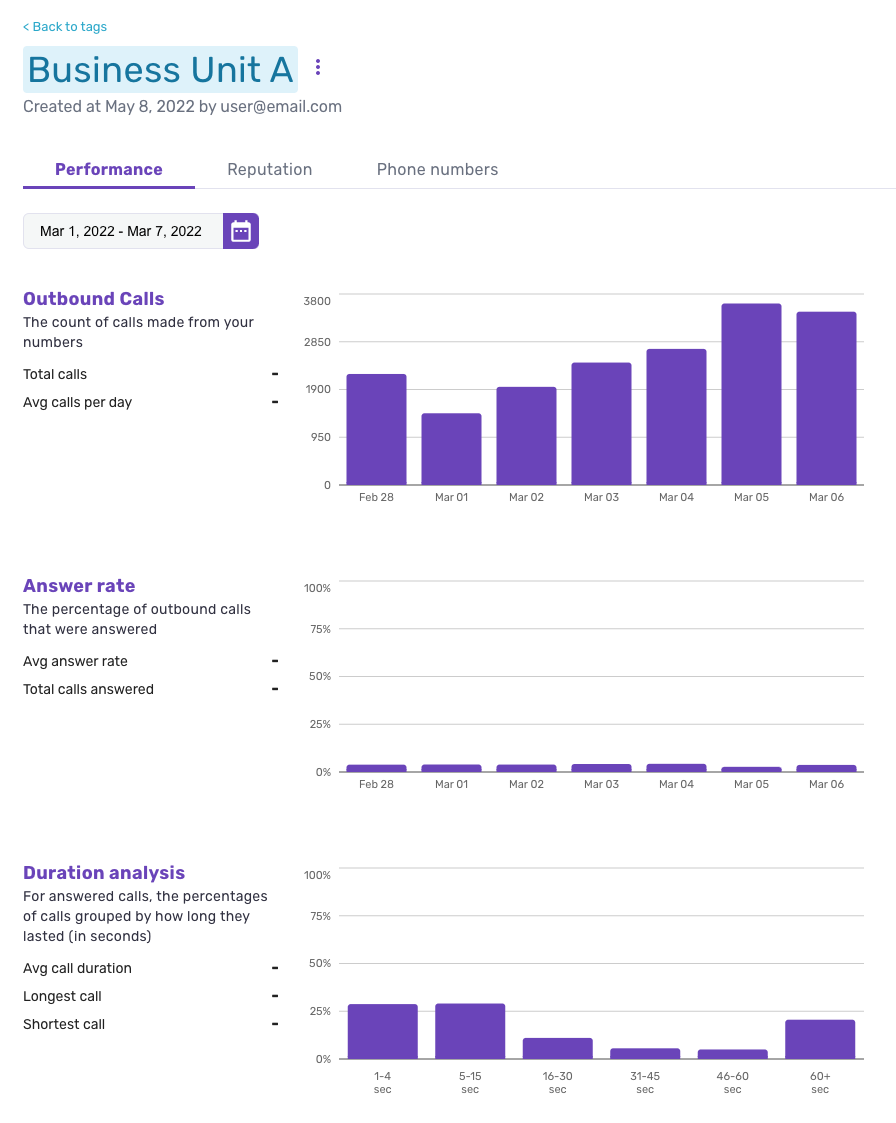
Figure 4 - Comparing analytics for multiple tags
Performance Analysis Report
The new Performance Analysis Report allows you to review and compare performance metrics for all of your phone numbers for a selected period of time. You can view a preview of the report highlights in the console or download the entire report as a CSV file.
Key changes:
- A new area for the Performance Analysis Report
You can now find a "Performance Analysis Report" link in the main navigation. Here you can select a time period, see a preview with highlights of the report data, and download the complete report as a CSV file. (Figure 5) - A downloadable report for all of your phone numbers' performance metrics
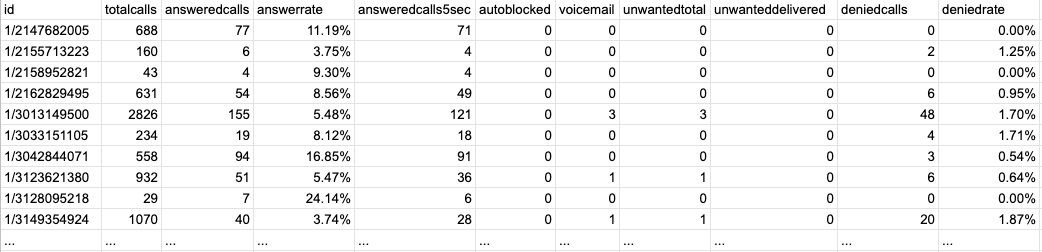
The Performance Analysis Report CSV file includes detailed metrics for every phone number in your account. (Figure 6)
To learn more, visit the Performance Analysis Report User Guide
Figure 5 - The Performance Analysis Report page
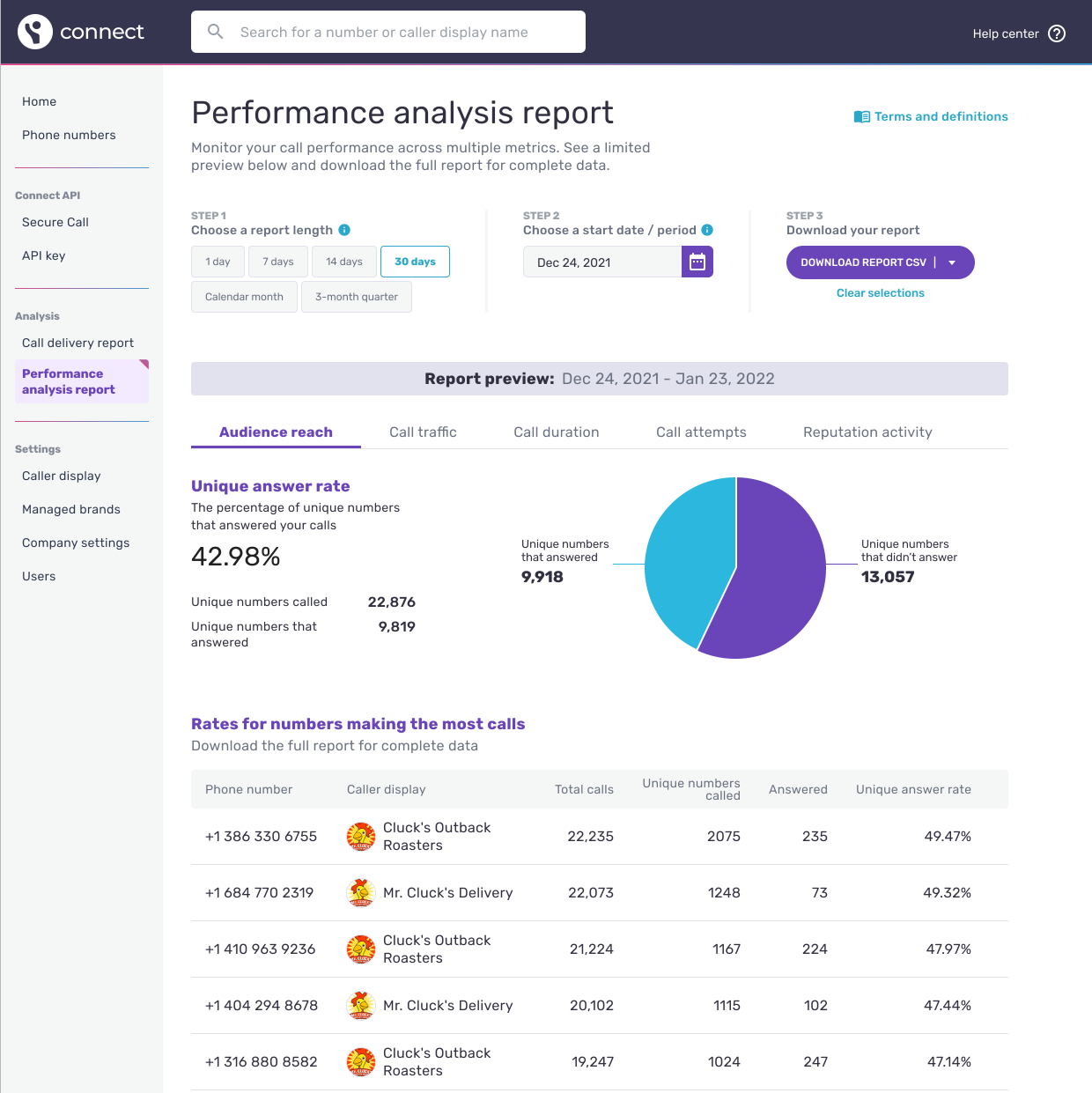
Figure 6 - Sample CSV
Phone number bulk upload
We've completely overhauled the way in which Hiya Connect customers can add phone numbers or edit branding details for many numbers at once, i.e. "in bulk," in the Hiya Connect console.
With the improved bulk upload feature, you can upload a CSV file and add up to 10,000 new phone numbers or edit the Call Branding details (caller display, caller image, call reason, etc.) for numbers already in your account.
Key changes:
- A new home for the bulk upload process
On the "Add phone numbers" page, 2 tabs are now available. (Figure 7) One for adding a single phone number and one for uploading a file with many numbers. Clicking "Upload file" will allow you to upload your formatted CSV file or download a template (Figure 8) to get you started. - Bulk upload summary
Once your CSV file is processed, you can find details about your upload in the table below the upload area. (Figure 9) Upload details are displayed for 90 days. After an upload is complete, an error log is created that provides details about any rows that could not be processed.
To learn more, visit the phone number bulk upload user guide
Figure 7: New tab for adding numbers via CSV upload
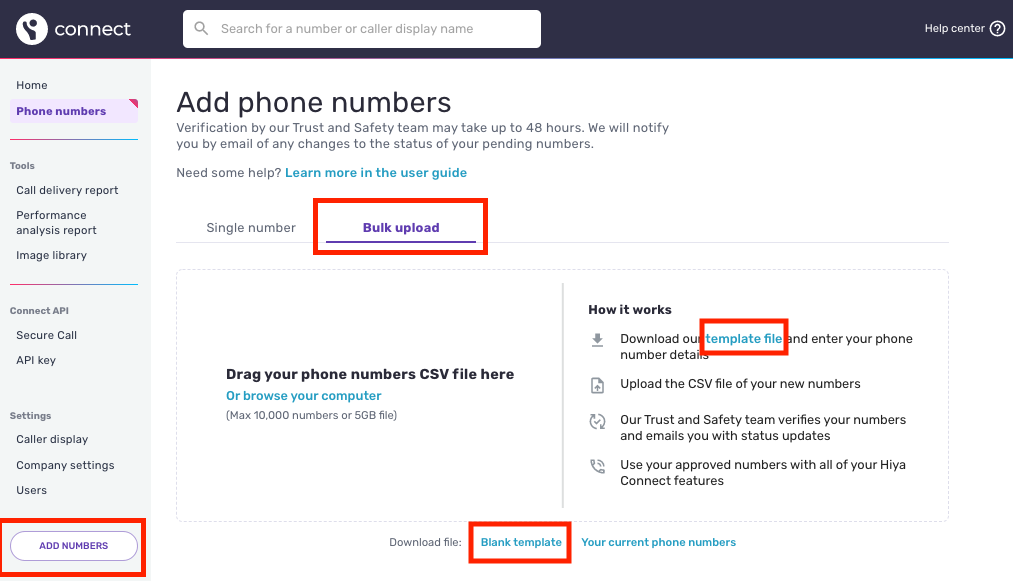
Figure 8: Sample template for uploading phone numbers

Figure 9: Upload details and error log
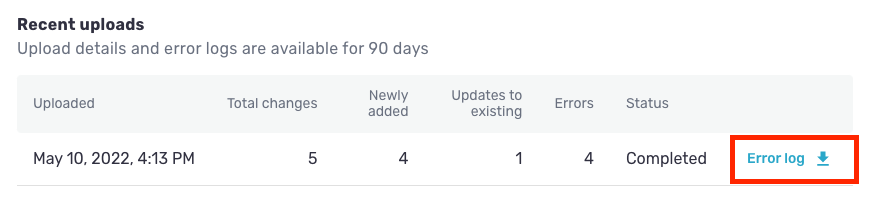
Image library
We've added a new feature to make managing images for Call Branding easier: the image library. You can now add new images, review the images in your account, or remove unused caller images all in one place. You can also find caller image IDs to use in your CSV file when adding or editing phone numbers via upload.
Key changes:
- A new area in the Connect console
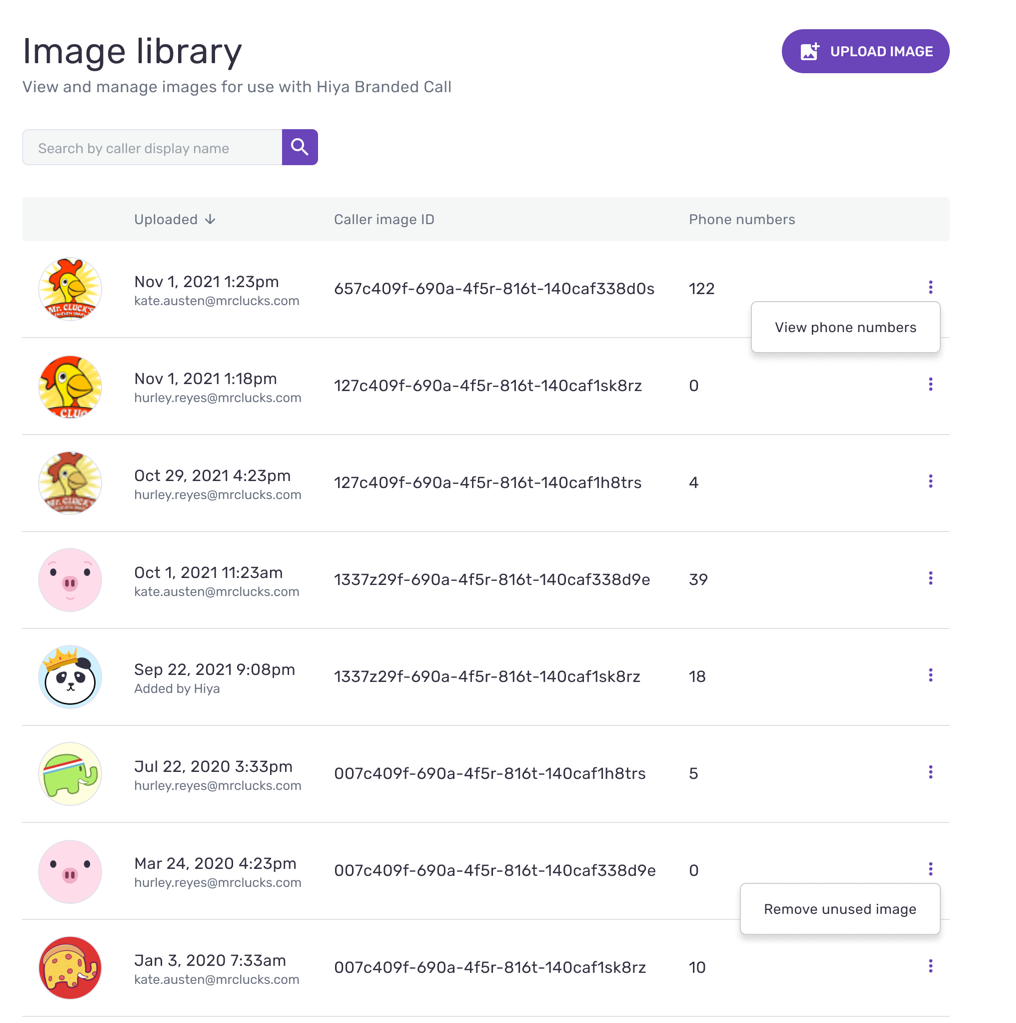
You can now find an "Image library" link in the main navigation. This page (Figure 10) displays a list of every caller image that has been uploaded to your account for Call Branding along with important details: upload date, caller image ID, and the number of phone numbers currently using a specific caller image. - New ways to manage your images
The image library adds new functionality for adding new images, removing unused images, and viewing the phone numbers currently using an image for Call Branding.
To learn more, visit the image library user guide
Figure 10: The new image library
Call Delivery Report enhancements
The Call Delivery Report has gotten even better.
What's new?
- Create custom names for your Call Delivery Reports
Now you can name your report, allowing you to more easily keep track of the reports you’ve run and refer to them in future visits with ease. (Figure 11) - Identify numbers in your call log that aren't in your account
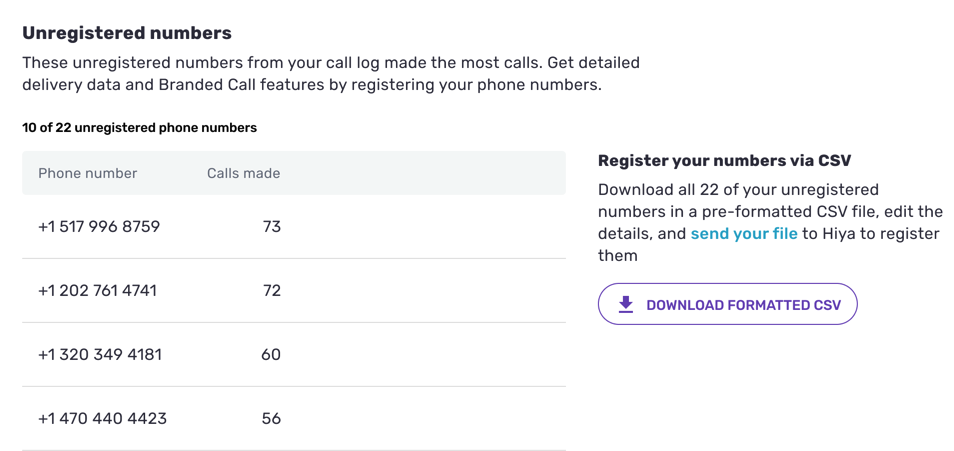
The Call Delivery Report now provides a list of phone numbers not yet registered with Hiya Connect as well as the number of calls they made. (Figure 12) Export the phone number list as a CSV file, add call branding details, and add them to your account using the new bulk upload feature. Easy!
To learn more, visit the Call Delivery Report user guide
Figure 11 - Naming your Call Delivery Report
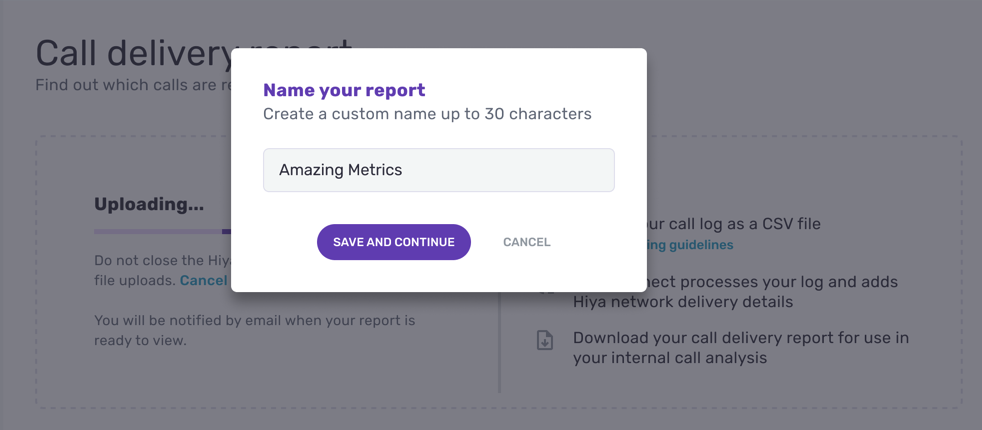
Figure 12 - Unregistered number list and CSV download